
Install the Recipe Widget on Webflow
Seven steps in the Webflow Designer, with screenshots for each. One Embed element does all the work.
Webflow's Embed element accepts the widget's two-script embed directly — no custom development. The recipes render into your page's DOM (not an iframe), so every recipe indexed on your domain builds your search presence.
Before you start
- A Crafted Pour brand profile. If you have not claimed yours yet, start free at craftedpour.com/claim.
- Your products registered with Crafted Pour. Email info@craftedpour.com with your product list, product detail page URLs, a photo of each product, and UPC codes (preferred) or SKUs. We register these so your products appear as shoppable ingredients and the right recipes flow into your widget. Paid plans can manage products directly in the CMS.
- Your
plugin_id. We issue this when we provision your widget — it ties the embed to your brand's products, settings, and domain. Log in at craftedpour.com/cms — your Plugin document is listed there, and its document ID is yourplugin_id. It is also in your onboarding email, or ask info@craftedpour.com. - Your site domain on file with us. Tell us the exact domain (and any staging/preview domains) where the widget will run so we can register them. Recipes will not load from an unregistered domain.
- Brand color hex codes (6 digits, without
#) if you want the widget styled to match your site — e.g.,B42B30. A tool like htmlcolorcodes.com helps. - A Webflow plan that allows custom code: an active Site plan, or a Core, Growth, Agency, or Freelancer Workspace. (Code Embed elements are capped at 50,000 characters — the widget embed is well under.)
Step-by-step
Open the Designer
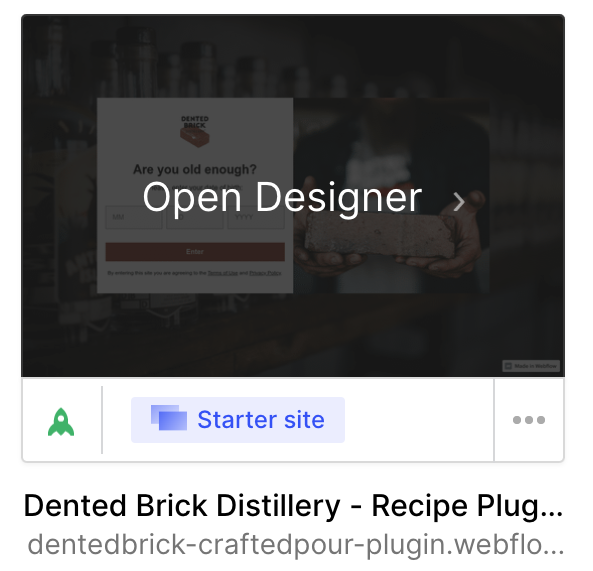
From your Webflow dashboard, hover the site you want to add recipes to and click Open Designer.
Create a new page
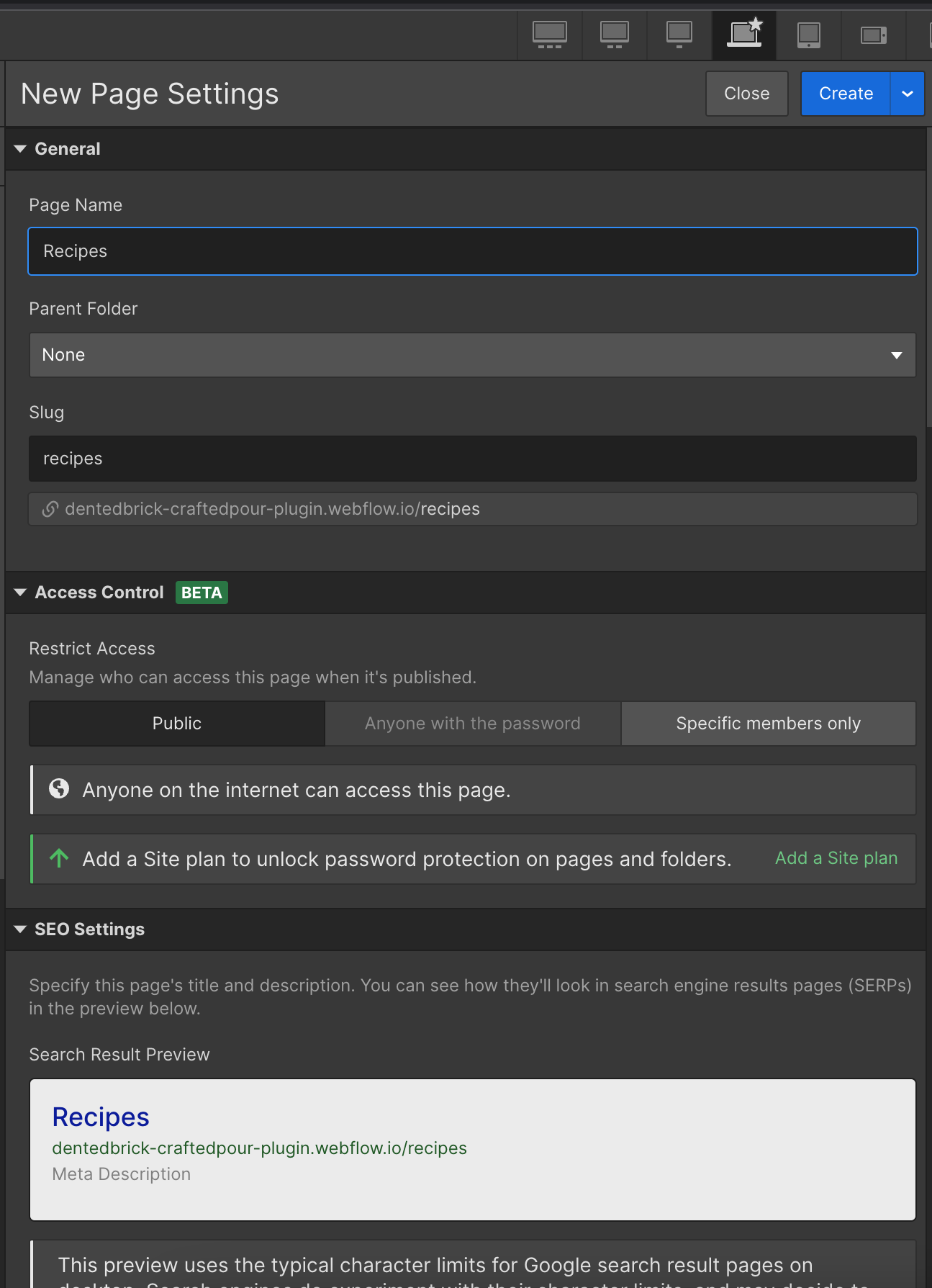
Open the Pages panel on the left and click Create New Page. Name it (e.g., “Recipes”) — the slug becomes your gallery URL (e.g., /recipes). While you are in Page Settings, give it a real SEO title and meta description. Click Create.
Add an Embed element
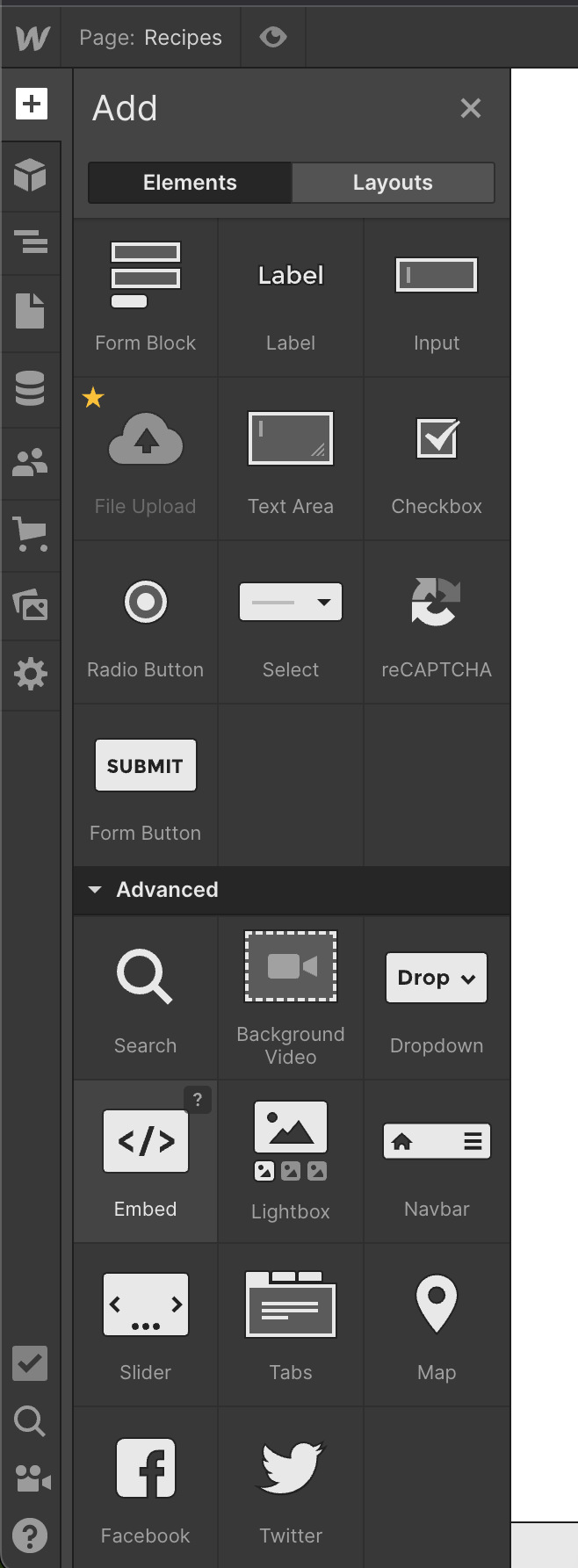
With the new page open, click the + (Add Elements) button, scroll to Advanced, and drag the Embed element onto the page where the gallery should render.
Paste the embed code
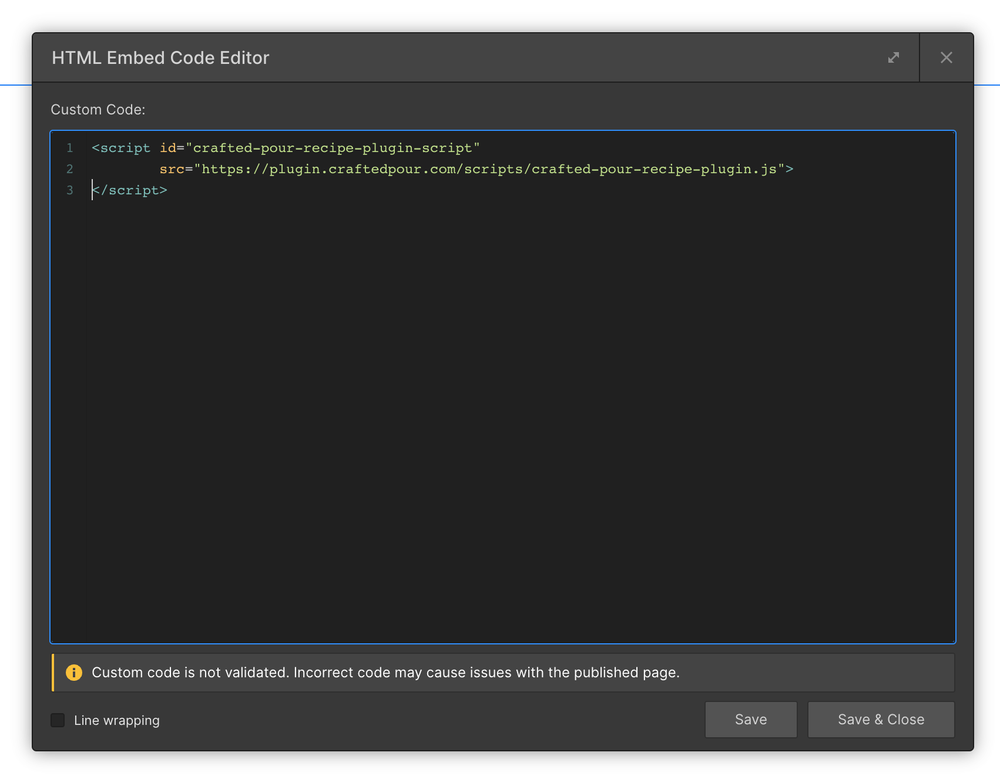
The HTML Embed Code Editor opens. Paste the v2 embed and click Save & Close:
Cocktail gallery embed (v2)
<!-- Crafted Pour SEO script (load first) -->
<script type="text/javascript"
  src="https://plugin.craftedpour.com/v2/scripts/crafted-pour-recipe-plugin-seo.js">
</script>

<!-- Crafted Pour recipe widget -->
<script id="crafted-pour-recipe-plugin-script"
  src="https://plugin.craftedpour.com/v2/scripts/crafted-pour-recipe-plugin.js?plugin_id=YOUR_PLUGIN_ID&catfilter=true&featured=true&primaryColor=B42B30">
</script>
Replace YOUR_PLUGIN_ID with your plugin ID and B42B30 with your brand color (hex, no #). The screenshot shows the older v1 script — use the v2 code above; the flow is identical.
Publish
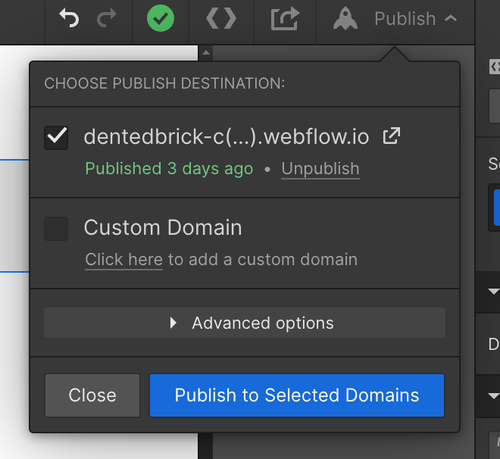
Click Publish (top right), choose your domains, and publish. Script tags show only a placeholder on the Designer canvas — you must publish to see the widget run.
View the live page
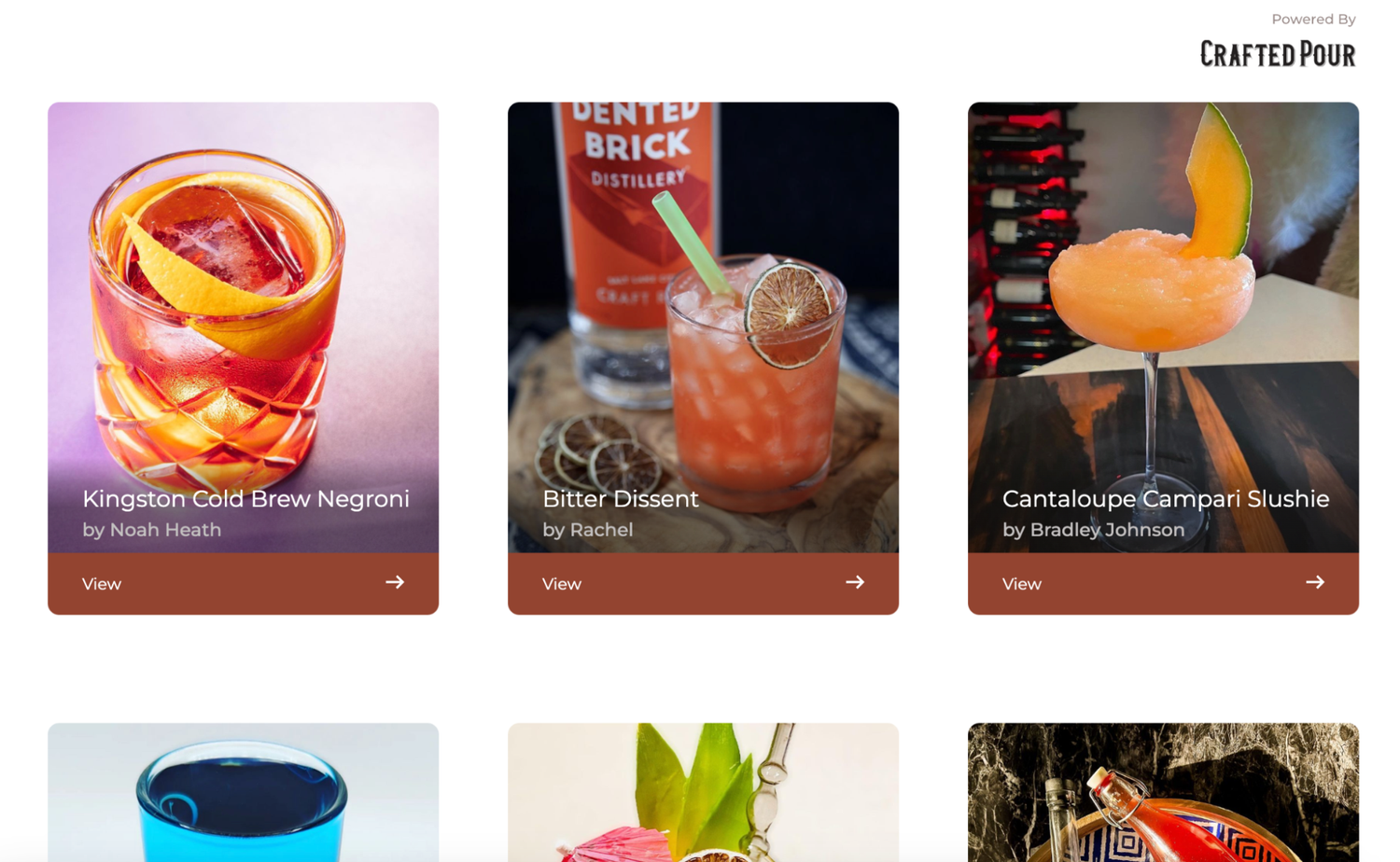
Open the published page — your cocktail gallery should load with recipe cards, photos, and the “Powered by Crafted Pour” badge.
Add it to your navigation
Link the new page from your site navigation so visitors and search engines find it, then run through the verification checklist below.
Product pages (Webflow Ecommerce)
Selling direct through Webflow Ecommerce? Add the same Embed element to your product template with the product-page variant — one row of recipes plus community ratings for that bottle:
Product page embed
<!-- Crafted Pour recipe widget — product page mode -->
<script id="crafted-pour-recipe-plugin-script"
  src="https://plugin.craftedpour.com/v2/scripts/crafted-pour-recipe-plugin.js?plugin_id=YOUR_PLUGIN_ID&rows=1&ratings=true&sku=YOUR_PRODUCT_UPC_OR_SKU&primaryColor=B42B30">
</script>
On a static per-product page, paste the product's UPC/SKU directly. On the ecommerce product template, bind the SKU field into the embed using Webflow's + Add Field option inside the Embed editor so each product page passes its own sku value.
Customize the widget: full parameter reference
Everything after the ? in the script URL configures your widget. Chain parameters with &. All are optional except plugin_id.
| Parameter | Example | What it does |
|---|---|---|
plugin_id | plugin_id=qYyFJ6… | Required. Your widget ID from Crafted Pour — loads your products, recipes, and partner settings. |
rows | rows=2 | Show a fixed number of rows with paging arrows. Omit for an infinite-scroll gallery. Use rows=1 on product pages. |
featured | featured=true | Adds the curated FEATURED rail at the top — hand-picked seasonal recipes photographed with your bottle. Toggle its content via the CMS (show_featured). |
ratings | ratings=true | Shows the product-ratings widget (community tasting notes and star ratings) above the recipes. Designed for single-product pages. |
recipes | recipes=false | Set to false to hide the recipe grid — combine with ratings=true for a ratings-only embed. |
catfilter | catfilter=true | Adds a category (spirit-type) filter dropdown. |
productfilter | productfilter=true | Lets visitors filter recipes by your products. Rendered as a dropdown or as visual product pills depending on your partner-level filter style setting. |
brandfilter | brandfilter=true | Brand selector — for portfolios, groups, and retailers managing multiple brands in one widget. |
product | product=KN3ARO… | Restrict the widget to one product by its Crafted Pour product ID. Only needed when you cannot use sku. |
sku | sku=012345678905 | Match a product by UPC (preferred) or SKU — ideal on ecommerce product templates where the platform injects the value dynamically. Repeatable for multi-SKU pages. |
primaryColor | primaryColor=B42B30 | Main accent color (buttons, highlights). Hex without #. |
color | color=B42B30 | Supported alias for primaryColor — many existing installs use it and it keeps working. If both are present, primaryColor wins. Prefer primaryColor for new installs. |
secondaryColor | secondaryColor=FFFFFF | Background for tags and ingredient boxes. |
backgroundColor | backgroundColor=FFFFFF | Widget background. Defaults to transparent so it inherits your page background. |
textColor | textColor=000000 | Main text color. |
textPosition | textPosition=bottom | Moves recipe name and creator below each photo instead of overlaid on it — a cleaner look on minimal sites. |
recipeItemBorder | recipeItemBorder=0 | Set to 0 for square recipe-card corners (matches squared-off site designs). Omit for the default rounded cards. |
Partner-level behavior — editor's notes, smart product placement (competitor masking), generic-recipe inclusion, and filter style — is configured per brand rather than per embed. See the Partner Settings guide and manage them at craftedpour.com/cms.
Recipe detail pages & SEO setup
Every recipe card links to a full recipe page on your domain (your gallery URL with ?cp_rid=<recipe> appended). The SEO script in the embed above is what makes those pages count for search:
- Server-rendered recipe content. Title, ingredients, instructions, and your brand's AI-sommelier editor's note are served before any JavaScript runs, so Google indexes real content on your URL — not an empty shell.
- Structured data. Machine-readable Recipe markup including star ratings, making your pages eligible for Google's rich results and readable by AI assistants like ChatGPT and Gemini.
- Canonical and social tags. Correct canonical, Open Graph, and Twitter URLs are set per recipe automatically.
That is why the two-script embed matters: keep the SEO script before the widget script, on the same page.
Webflow note: create the sitemap redirect under Site settings → Publishing → 301 redirects (redirect path /recipe-sitemap.xml to your Crafted Pour sitemap URL). Webflow serves your own sitemap at /sitemap.xml; the recipe sitemap is additive.
Submit your recipe sitemap to Google
- We auto-generate a sitemap of every recipe URL on your domain at:
https://plugin.craftedpour.com/sitemaps/YOURDOMAIN.com_recipes.xml - Create a redirect on your domain — e.g.
yourdomain.com/recipe-sitemap.xml→ the URL above. - In Google Search Console, verify your domain and submit the redirect URL under Sitemaps.
How to know it worked
- The gallery renders. Open the published page — you should see a grid of recipe cards with photos and a “Powered by Crafted Pour” badge. If you enabled
featured=true, a FEATURED rail leads the page. - Cards open recipe pages on your domain. Click any recipe — the URL should stay on your site and gain
?cp_rid=…, showing the full recipe with your product linked in the ingredients. - Your products are shoppable. On a recipe that uses your product, the ingredient should link out with your “shop” call-to-action (competitor names masked if smart product placement is on).
- SEO content is being served. On a recipe page (with
cp_ridin the URL), use View Source and search forrecipe-seo-contentor the recipe name — it should appear in the raw HTML. - No console errors. Open your browser's developer tools (F12) → Console. A healthy install logs
Recipe widget loadedwith no red errors.
Troubleshooting
- The Embed element shows a placeholder in the Designer. Expected — Webflow does not run custom code in the Designer canvas. Publish and check the live URL.
- Publishing is blocked or the embed won’t save. Custom code requires an active Site plan or a Core, Growth, Agency, or Freelancer Workspace. Upgrade, or test on the free
.webflow.iostaging domain (send us that staging URL to whitelist first). - The script shows as plain text on the page. It was pasted into a rich-text/paragraph field instead of an HTML/code element. Re-paste it into your platform's HTML embed field.
- Nothing renders at all. Check that the script URL is exactly
https://plugin.craftedpour.com/v2/scripts/crafted-pour-recipe-plugin.jsand that your page editor did not strip the<script>tag (some platforms restrict scripts on lower-tier plans). - An empty grid loads. Usually a wrong or missing
plugin_id, or your domain is not yet registered with us. Email support@craftedpour.com with your page URL. - Testing on a staging or preview domain. Send us the full preview URL first so we can whitelist it — unregistered domains will not load recipes.
- Old content keeps showing after changes. Clear your site/CDN cache and hard-refresh (Cmd/Ctrl + Shift + R).
- Colors look wrong. Color values must be 6-digit hex without the
#—primaryColor=B42B30, notprimaryColor=#B42B30. A#starts the URL fragment, so everything from it onward is silently dropped and your color never reaches the widget. The same applies to the legacycolor=parameter. - Your site uses a Content-Security-Policy. Allow
plugin.craftedpour.cominscript-src,connect-src, andimg-src.
Want the deep-dive on what the widget does for your brand — smart product placement, brand-aware photos, AI editor's notes, star ratings in Google? See the full feature tour.
Install it free — or let us do it for you
Everything on this page is free to self-install with your existing widget. Prefer white-glove? We offer paid installation — custom styling, placement, and theme work included — so it is live on your site without you touching a line of code.